Quick Start
After creating your project, you can immediately see WebSpeaker in action. In this guide you will configure content scraping, run it, and open the demo page to chat with the AI assistant — all without touching your own website’s code.
Configure Scraping
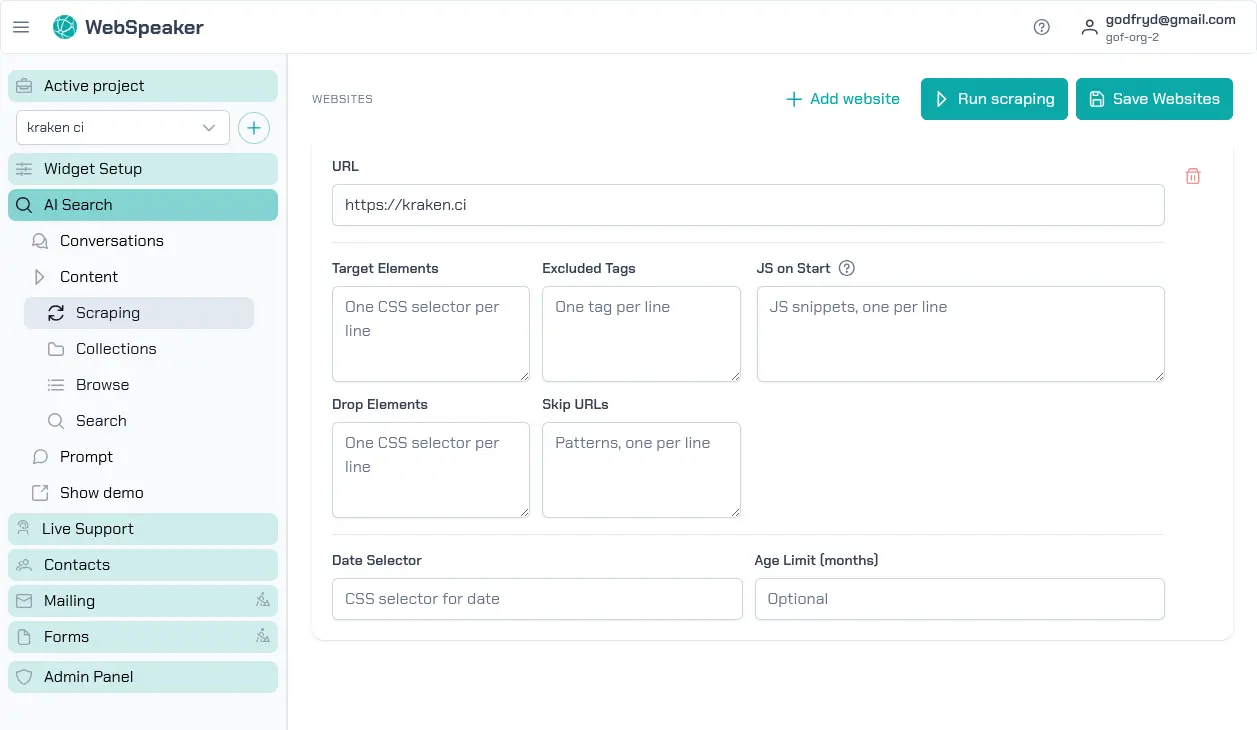
In the portal sidebar, navigate to Knowledge base -> Sources. Add your website URL and, optionally, specify target elements or excluded tags to fine-tune which content gets indexed.
Run Scraping
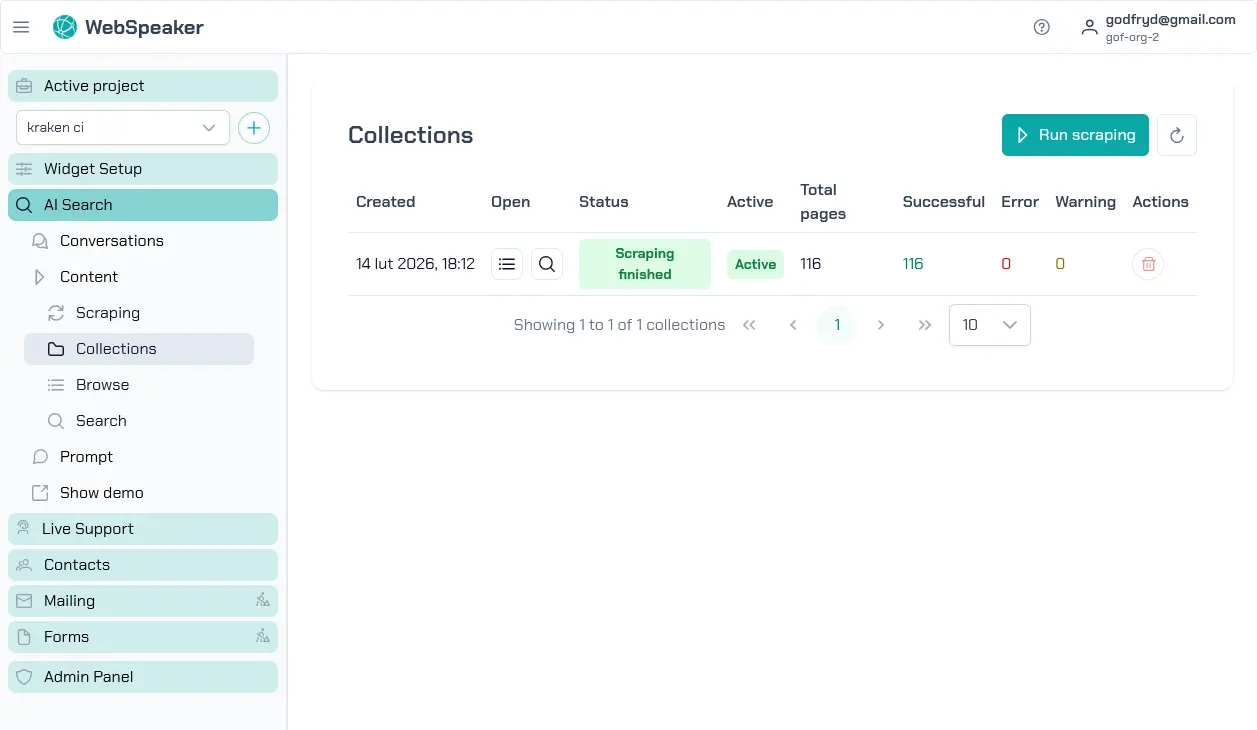
Click the Run scraping button to start indexing your website. The process takes a few minutes depending on the size of your site. You can monitor progress in the collections view, which shows scraped pages and their status.
Try the Demo
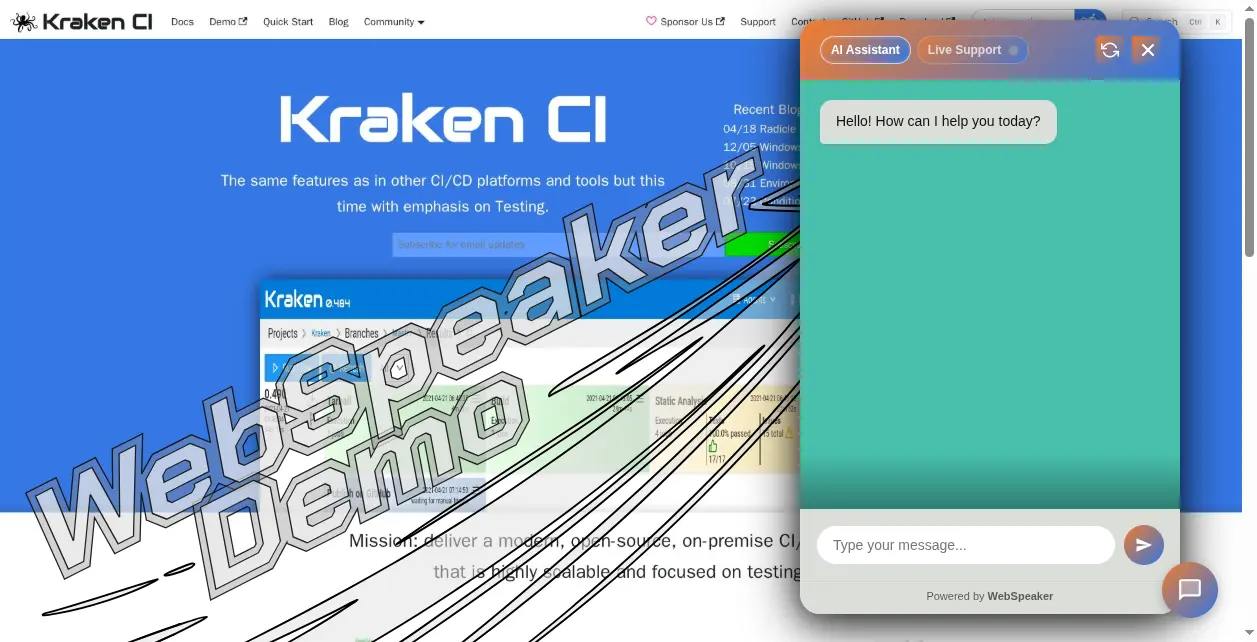
Once scraping is complete, open the Start page in the sidebar and click Open demo on the demo step. This opens a demo page with the WebSpeaker widget already embedded. Type a question into the chat to verify that the AI assistant can answer based on your website’s content.
Track Progress with the Get Started Checklist
Every project has a Get Started page in the sidebar with a checklist of four steps: setting up your first website for scraping, building your first collection, trying the demo, and installing the widget on your site. The page header shows how many steps are done, for example “2/4 steps done”, and clicking a step opens its instructions with a link to the related settings.
Widget Install Detection
The final checklist step, Install the widget, completes itself automatically. After you add the widget snippet to your public website and publish the page (see Install the Widget), WebSpeaker detects the first real page load of the widget and marks the step as done. The checklist then shows a Live widget: badge with the detected origin, and the step itself displays the detection date and time.
Loading the widget from localhost, from the hosted demo page, or from a private network address does not count, so testing locally will not trigger detection — you need a real page load on a public URL. If no project in your organization has a detected widget installation within 30 days, WebSpeaker deletes the pre-install sample collections.
Once all four steps are complete, a Hide from sidebar button lets you remove the checklist from the project navigation.
Next Steps
Now that you have confirmed the widget works with your content, head over to Install the Widget to embed it on your own website.