Set Up Live Support
Live Support allows your team to have real-time conversations with website visitors directly through the WebSpeaker widget. This guide covers how to enable the feature, add support team members, and configure your support availability.
Enable Live Support
To activate Live Support, log in to the management portal, navigate to your project, and open Widget Settings -> Features. Toggle the Live Support feature flag to enable it. Once enabled, the widget on your website will display a chat tab (or if AI Search is disabled, the widget will show the live chat interface directly) where visitors can initiate conversations with your team. See Widget Features for a detailed description of how feature flags work.
You can enable or disable Live Support at any time without changing the widget snippet on your website. The widget automatically detects the current configuration each time it loads.
Add Support Team Members
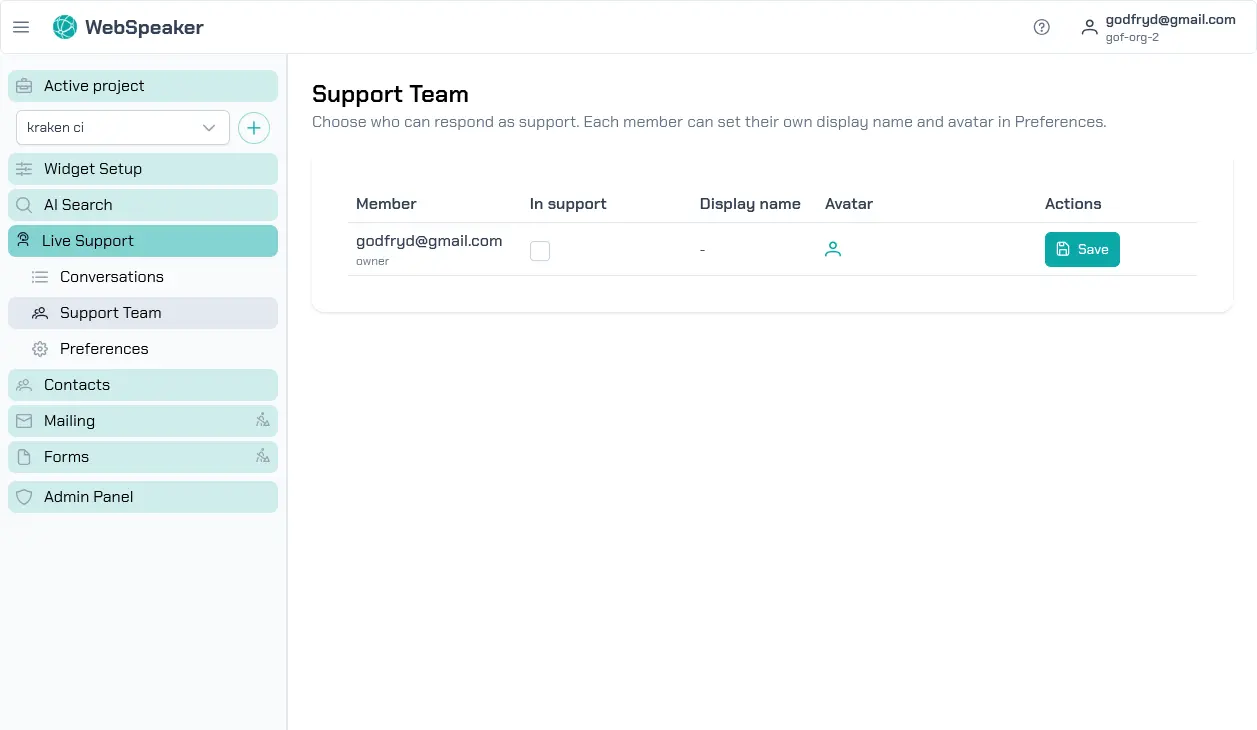
For your team to receive and respond to visitor messages, you need to add them as support agents. Invite team members from Organization -> Members, then open Live Support -> Support Team to see who can act as a support agent. Any member of your organization can act as a support agent.
Support agents can access conversations through two channels: the web-based support dashboard at portal.webspeaker.pro and the mobile app (available for Android). Both channels provide real-time message delivery, so agents can respond promptly regardless of which platform they are using.
Configure Availability
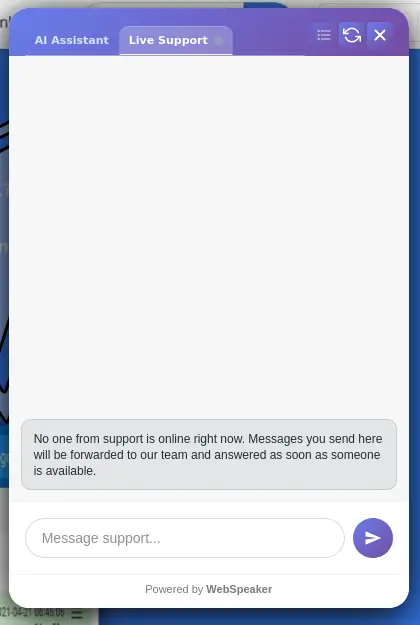
The widget shows visitors whether support agents are currently online and available to chat. Agent availability is determined automatically based on whether any agent is actively connected to the support dashboard or mobile app. When at least one agent is online, the widget indicates that live support is available. When no agents are online, the widget shows an offline status.
This automatic presence detection ensures that visitors always have accurate expectations about whether they can get a real-time response. There is no need to manually toggle availability; it is handled by the system based on agent connections.
How It Works for Visitors
When a visitor opens the widget and navigates to the Live Support tab, they can type a message to start a conversation. If agents are online, the message is delivered in real time and agents can respond immediately. The visitor sees typing indicators and receives responses within the same chat interface.
If a visitor reaches out when no agents are online, the system can still accept the message. When an agent comes online later, they will see the pending conversation and can respond. This ensures that no visitor inquiry is lost, even outside of your team’s active hours.
Handoffs from the AI Assistant
If your project also has AI Search enabled, your team can receive conversations even when a visitor starts with the AI assistant instead of Live Support. When the assistant decides a visitor should talk to a person, it hands the conversation to your team so an agent can pick it up with full context. See Handle Conversations for how these handoffs appear in your dashboard and how you are notified.
Next Steps
After enabling Live Support and adding your team, configure your Support Preferences to set display names, avatars, and notification sounds. Then review the Handle Conversations guide to learn how to use the support dashboard effectively.