Run Scraping
After configuring your scraping settings, you need to trigger a scraping run to create a new content collection. Each run produces a completely new collection — it does not modify any existing one. This guide explains how to start a run, monitor its progress through each stage, and handle any errors that may occur.
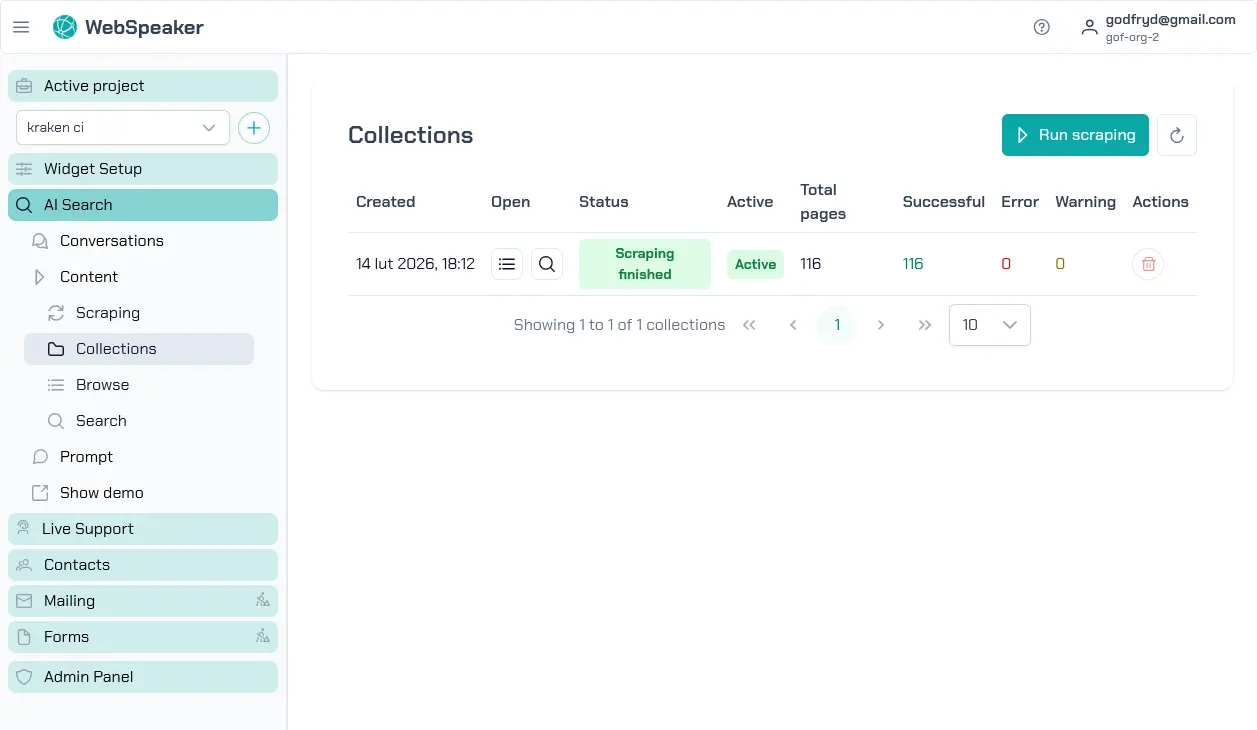
Trigger a Scraping Run
To start scraping, navigate to your project in the management portal and go to the AI Search -> Content -> Collections section. Click the button to start a new scraping run. The system will begin crawling the URLs you configured, extracting content, and generating the embeddings needed for AI search.
Each scraping run processes your entire configured scope and creates a new collection containing the current state of your website content. If you have made changes since the last run, start a new scraping run and then activate the resulting collection to replace the previous one. You can run scraping as often as needed to keep your content up to date.
Scraping can be started manually from the portal or automatically through the Scheduled Refresh settings in the Scraping section. Automatic runs follow the same pipeline and also create a new collection for each execution.
Collections
Each scraping run produces a collection — a snapshot of all the content that was scraped. Multiple collections can exist at the same time. The one currently serving website visitors is marked as the active collection.
Activate — click the Activate button in the Active column to switch which collection is active. Only collections whose scraping run has finished can be activated.
Open — the Open column provides two buttons:
- Browse (list icon) — opens the collection detail page showing all scraped pages. See Browse Content for details.
- Search (search icon) — opens semantic search over the collection content. See Test Search for details.
Actions — the Actions column offers additional operations:
- Cancel — stops a scraping run that is still in progress.
- Delete — removes the collection. This action is disabled for the active collection and for collections whose scraping is still in progress.
Monitor Pipeline Status
Once a scraping run starts, you can monitor its progress in real time through the portal. The pipeline displays the current stage of processing along with statistics such as the number of pages discovered, pages processed, and any errors encountered. The progress view can be updated by clicking the refresh button above the table near the Run scraping button.
Understand the Scraping Stages
The scraping pipeline consists of several stages that run in sequence:
-
Crawling — The scraper visits your configured URLs and follows links to discover pages within your site. During this stage, it builds a map of all the pages that need to be processed and downloads their HTML content.
-
Extracting — For each discovered page, the scraper applies your CSS selector configuration to extract the relevant text content. It strips out HTML tags, removes excluded elements, and produces clean plain text that represents the meaningful content of each page.
-
Embedding — The extracted text is split into chunks and processed through an embedding model to generate vector representations. These embeddings are what enable semantic search, allowing the AI to find content based on meaning rather than just keyword matches.
After all stages complete successfully, the new collection is ready to be activated. Once you activate it, visitors using the widget will start getting results from the new content.
Handle Errors
During a scraping run, some pages may fail to process due to network errors, timeouts, server errors, or unexpected page structures. The pipeline reports these errors and continues processing the remaining pages. After the run completes, you can review the error list to identify problematic pages.
Common errors include pages returning HTTP 404 or 500 status codes, pages that take too long to load, or pages with unusual HTML structures that the content extractor cannot parse. For persistent errors, check that the affected pages are accessible in a regular browser and adjust your scraping configuration if needed. Pages that fail to process are excluded from the knowledge base but do not prevent the rest of the run from completing successfully.