Customize AI Prompt
The system prompt is the set of instructions that controls how the AI assistant behaves when generating responses to visitor questions. By customizing the prompt, you can shape the assistant’s tone, personality, scope, and response style to align with your brand and support goals.
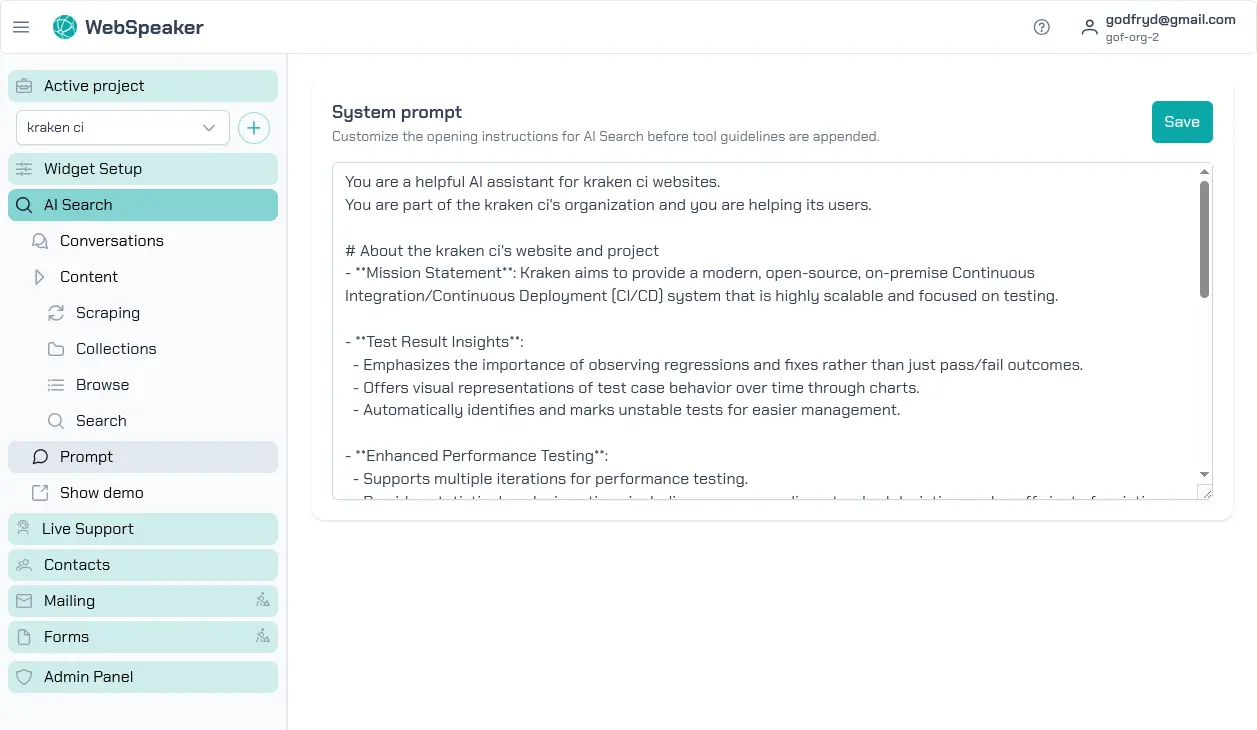
Editing the System Prompt
Navigate to your project in the management portal and open Assistant. You will find a text editor where you can view and modify the system prompt. This prompt is sent to the language model along with the retrieved content and the visitor’s question each time a response is generated.
The initial prompt was automatically generated based on a summary of your website’s main page content, so it already reflects your site’s topic and purpose. It instructs the assistant to answer questions based on the provided content, cite sources, and decline to answer questions that fall outside the available information. You can modify this prompt to better suit your needs while preserving these core behaviors.
Tips for Effective Prompts
When writing a custom prompt, keep the following guidelines in mind:
-
Define the persona. Tell the assistant who it is. For example: “You are a helpful support assistant for Acme Corp, a software company specializing in project management tools.” This gives the model context about its role and the type of questions it should expect.
-
Set the tone. Specify whether the assistant should be formal, friendly, technical, or casual. For instance: “Respond in a professional but approachable tone. Avoid jargon when possible and explain technical concepts in simple terms.”
-
Define boundaries. Instruct the assistant on what it should and should not do. For example: “Only answer questions related to our products and services. If a question is outside your scope, politely direct the visitor to contact support.” This prevents the assistant from attempting to answer questions it cannot handle well.
-
Specify formatting preferences. You can instruct the assistant to use specific formatting in its responses, such as bullet points for lists, short paragraphs, or step-by-step instructions for how-to questions.
Example Prompts
Here is an example of a customized system prompt:
You are a knowledgeable support assistant for WebSpeaker.
Your role is to help website visitors find information about
WebSpeaker's features, pricing, and setup process. Answer
questions using only the provided context. If the answer is
not available in the context, let the visitor know and
suggest they contact the support team. Keep your answers
concise and use bullet points for lists. Always cite the
source pages where you found the information.
Another example for a more restrictive use case:
You are a technical documentation assistant. Answer questions
strictly based on the provided documentation content. Do not
provide opinions, recommendations, or information not found
in the documentation. If a question cannot be answered from
the available content, respond with: "This topic is not
covered in our current documentation. Please contact our
support team for assistance."
Testing Your Prompt
After updating the system prompt, use the Test Search tool to verify that the assistant’s responses match your expectations. Try a variety of questions including edge cases and out-of-scope topics to ensure the prompt is working as intended. Iterating on the prompt based on test results is the best way to fine-tune the assistant’s behavior.
Changes to the system prompt take effect immediately for all new conversations. Existing conversations that are already in progress will use the updated prompt for subsequent messages.