Handle Conversations
The support dashboard in the management portal is your primary tool for handling live chat conversations with website visitors. This guide explains how to receive messages, respond to visitors, manage multiple conversations, and close completed conversations.
Receiving Messages
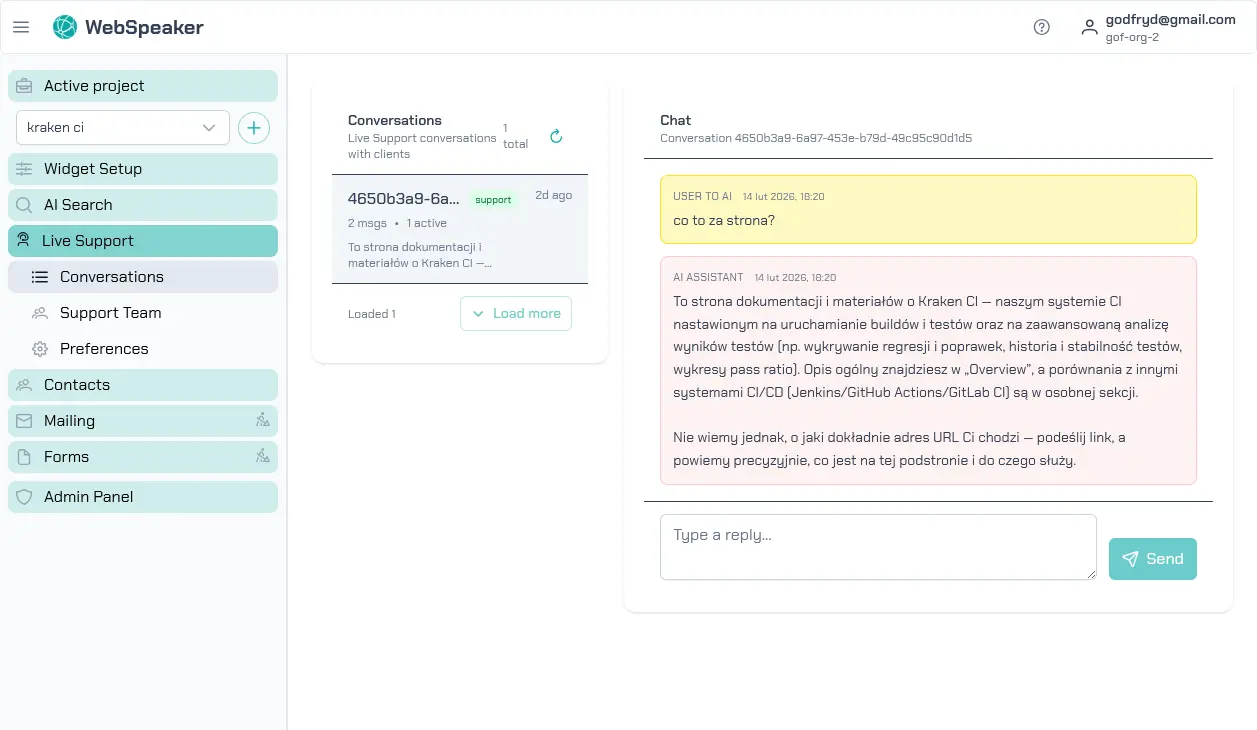
When a visitor initiates a conversation through the WebSpeaker widget on your website, the message appears in Conversations at portal.webspeaker.pro. If you have notification sounds enabled, you will hear an alert when a new message arrives. The dashboard displays a list of active conversations in a sidebar, with new and unread conversations highlighted for visibility.
Click on a conversation in the sidebar to open it in the main panel. You will see the visitor’s message along with any available context, such as the page they were on when they started the chat and their contact information (if consent was provided).
Responding to Visitors
Type your response in the message input area and press Enter or click the send button to deliver it. Messages are delivered to the visitor in real time through the widget on your website. The visitor sees your display name and avatar alongside your messages, creating a personalized support experience.
Keep your responses clear, concise, and helpful. Visitors using live chat typically expect quick replies, so aim to respond promptly. If you need time to research an answer, let the visitor know so they are not left waiting without feedback.
Managing Multiple Conversations
The support dashboard allows you to handle multiple conversations simultaneously. All active conversations appear in the sidebar, and you can switch between them by clicking on different entries. Unread messages are marked so you can easily identify which conversations need attention.
When managing several conversations at once, prioritize based on urgency and wait time. Visitors who have been waiting longer should generally receive attention first. The dashboard shows timestamps for each message, helping you keep track of response times.
Handoff Requests from the AI Assistant
If your project also has AI Search enabled, a visitor’s conversation with the assistant does not have to end there. When the assistant decides the visitor should talk to a person — for example because they ask for a human, request a sales call or demo, or keep running into the same unresolved support issue — it collects at least a way to contact the visitor and submits the request to your team. The visitor sees a confirmation message letting them know the request has been passed along.
Every submitted request appears in Handoffs. Select one from the list to see its topic and summary, the Source (the session it came from and the page the visitor was on), the Contact details the visitor confirmed, and any additional Details the assistant gathered. From there, click Open source conversation to jump straight to that session in Conversations — because the handoff continues the same conversation, you see the visitor’s earlier exchange with the AI assistant as context before you reply. See AI Analysis of Conversations for how a pending or submitted handoff is shown alongside the assistant’s replies.
Handoff Notifications
Your team learns about a new handoff the same way it learns about new live chat messages: an email is sent to organization members who have support enabled on the Support Team page (or to the account owner if no one is configured yet), and anyone with push notifications enabled — in the management portal in their browser or in the WebSpeaker mobile app — receives a push notification titled “New handoff request”. See Mobile App for more on push notifications on your phone.